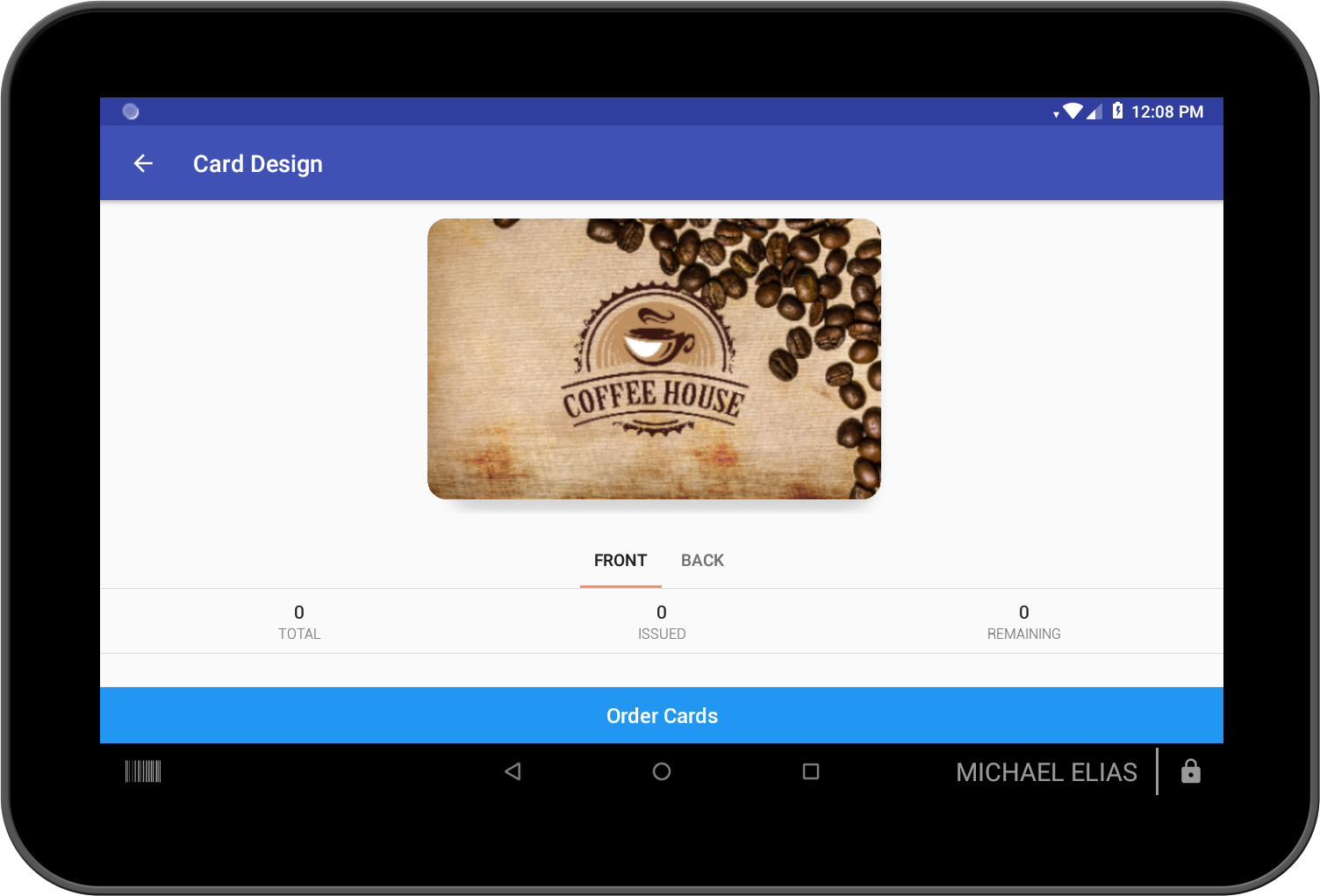
Create a Card Design in App
Customers enrolled in your gift card program have will receive a digital or physical card that holds their account balance. These cards can be customized with a design that reflects your business' brand.
1) Create a new card design
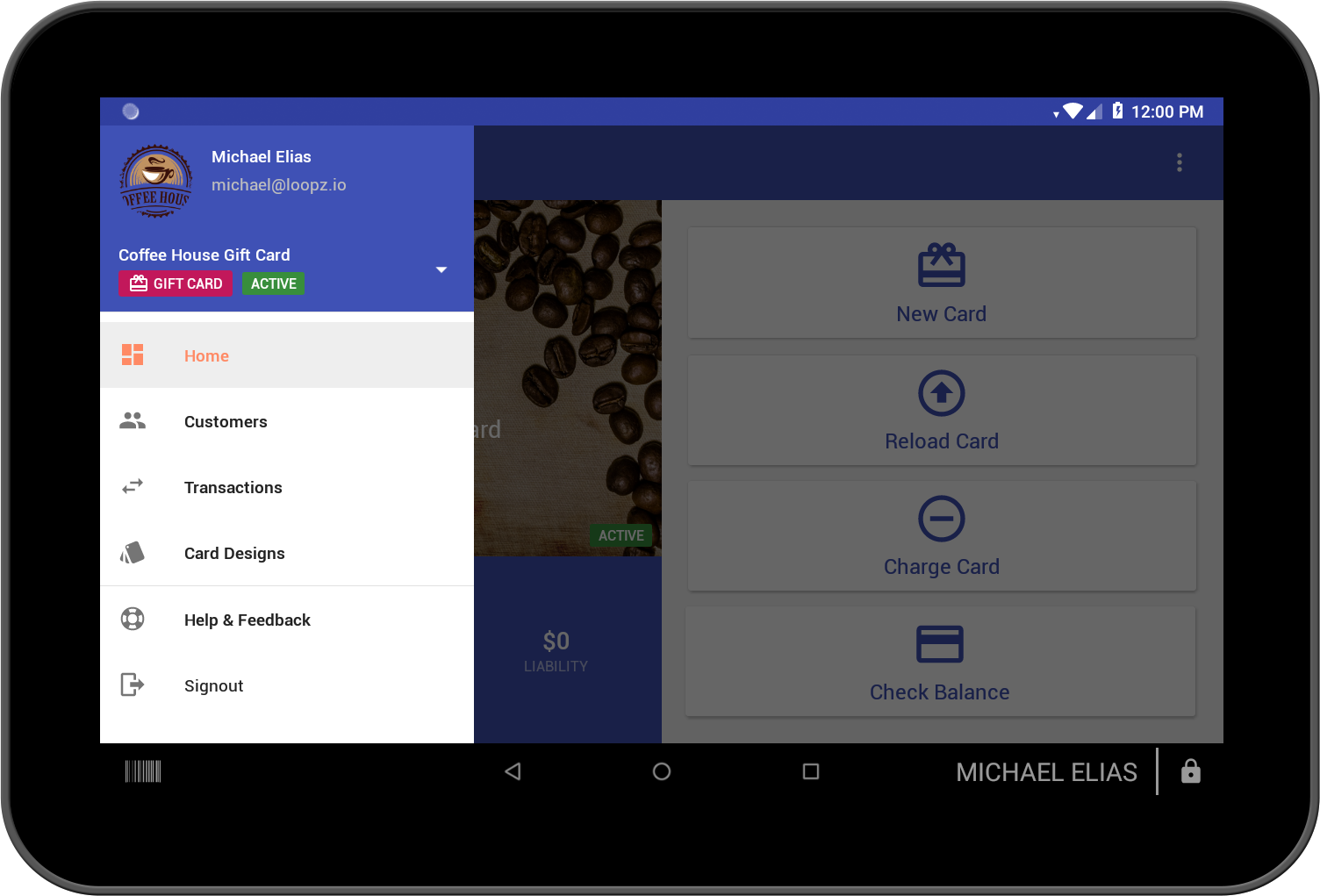
Tap the hamburger icon in the top left corner of the screen. This will show the navigation menu of the app. Select the Card Designs option. You're now viewing the list of all the card designs. To create a new card design tap the plus button in the bottom right corner.

2) Select a card design
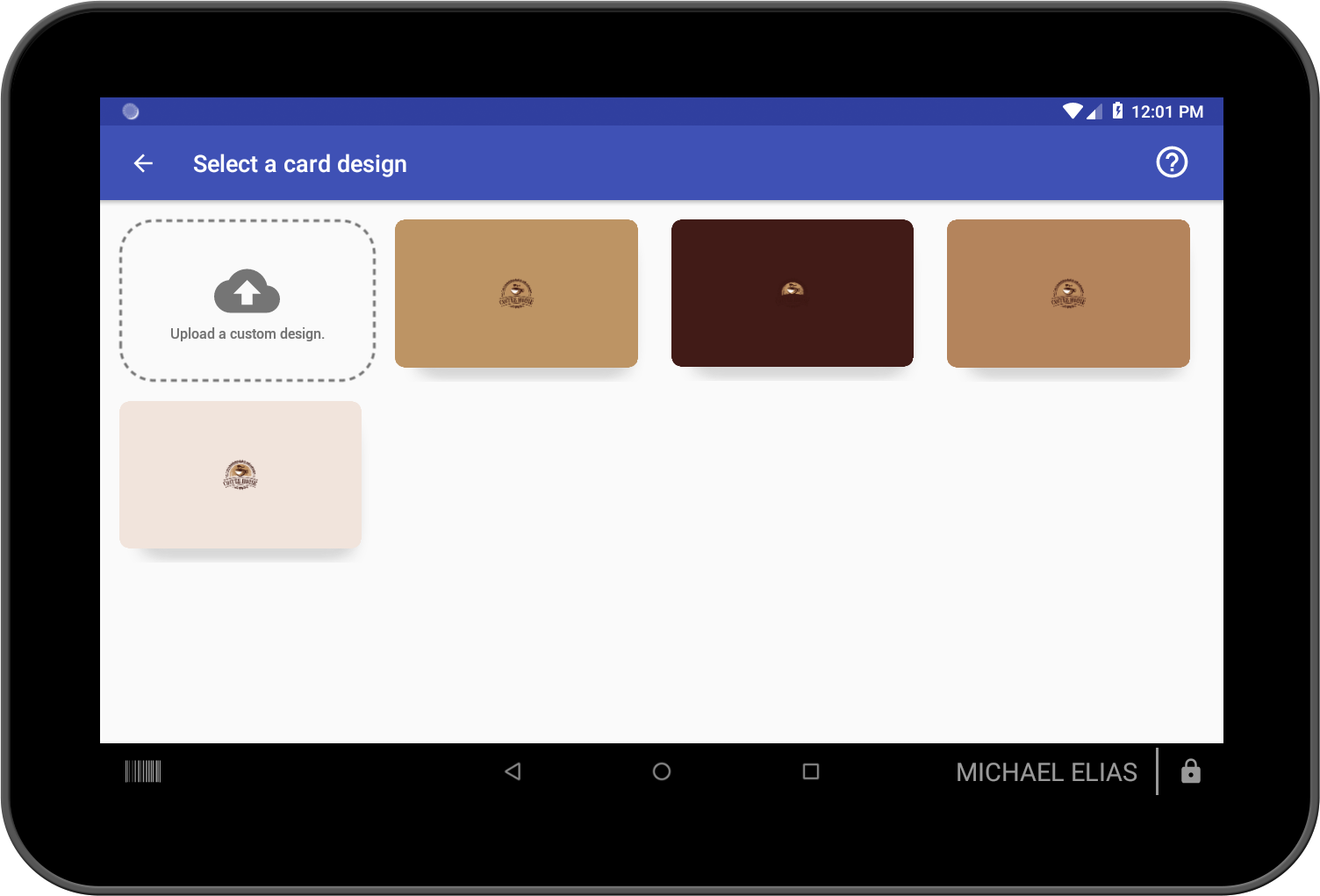
Pick one of our designs or upload one of your own. Images for custom designs should be at least 1081 x 708 pixels. Need help creating a custom design for your business? We'll help you create a custom design for free. Contact us.
3) Design back side
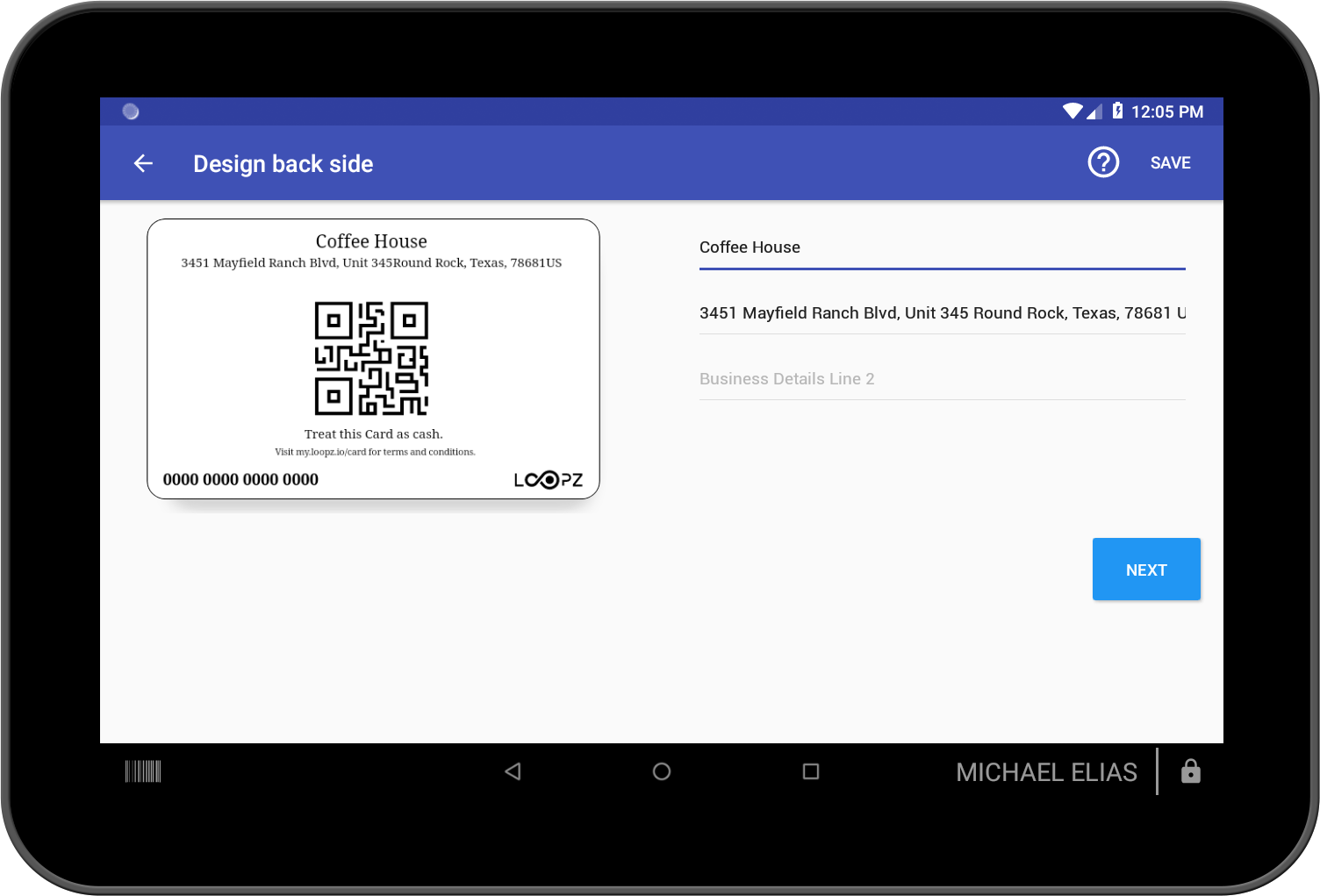
Now customize the back side of the card design. Enter your business details or anything else you would like printed on the back side of the card. Once done, tap the Save button on the top right corner. The card design is now created and you can place an order for cards with your new design.
4) Card design created
The card design is now created. You can start selling digital gift cards and you can place an order for physical cards with your new design. Learn more.